Provides an interface to create and modify a menu or menu bar, add and modify menu items, and retrieve information about the menu or menu bar.
class Menu extends Object
Menu objects are used to define, modify and display popup menus. Menu(), MenuFromHandle and A_TrayMenu return an object of this type.
class MenuBar extends Menu
MenuBar objects are used to define and modify menu bars for use with Gui.MenuBar. They are created with MenuBar(). MenuFromHandle returns an object of this type if given a menu bar handle.
"MyMenu" is used below as a placeholder for any Menu object, as "Menu" is the class itself.
In addition to the methods and properties inherited from Object, Menu objects have the following predefined methods and properties.
Creates a new Menu or MenuBar object.
MyMenu := Menu()
MyMenuBar := MenuBar()
MyMenu := Menu.Call()
MyMenuBar := MenuBar.Call()
Adds or modifies a menu item.
MyMenu.Add(MenuItemName, CallbackOrSubmenu, Options)
Type: String
The text to display on the menu item, or the position of an existing item to modify. See MenuItemName.
Type: Function Object or Menu
The function to call as a new thread when the menu item is selected, or a reference to a Menu object to use as a submenu.
A ValueError is raised if the submenu is this menu, contains this menu among its nested submenus, or is a MenuBar.
This parameter is required when creating a new item, but optional when updating the options of an existing item.
The callback accepts three parameters and can be defined as follows:
MyCallback(ItemName, ItemPos, MyMenu) { ...
Although the names you give the parameters do not matter, the following values are sequentially assigned to them:
You can omit one or more parameters from the end of the callback's parameter list if the corresponding information is not needed, but in this case an asterisk must be specified as the final parameter, e.g. MyCallback(Param1, *).
Type: String
If blank or omitted, it defaults to no options. Otherwise, specify one or more options from the list below (not case-sensitive). Separate each option from the next with a space or tab; line breaks are not separators. Except for Pn, each option name must match the whole word. To remove an option, precede it with a minus sign. To add an option, a plus sign is permitted but not required.
Pn: Specify for n the menu item's thread priority, e.g. P1. If this option is omitted when adding a menu item, the priority will be 0, which is the standard default. If omitted when updating a menu item, the item's priority will not be changed, even when replacing its callback. Use a decimal (not hexadecimal) number as the priority. The integer prefix following P is read, so P5text means 5 and Pxyz means 0. The priority can also be updated with CallbackOrSubmenu omitted.
Radio: If the item is checked, a bullet point is used instead of a check mark.
Right: The item is right-justified within the menu bar. This option is accepted only for a MenuBar; using it in a popup menu or submenu raises a ValueError.
Break: The item begins a new column in a popup menu.
BarBreak: As above, but with a dividing line between columns.
RTL [v2.1-alpha.17+]: The item is displayed in right-to-left order. This is used to support right-to-left languages, such as Arabic and Hebrew.
On macOS, Right, Break and BarBreak have no effect.
An invalid option raises a ValueError before the item is added or changed. If an OnError callback continues the error by returning -1, that option is skipped and the remaining valid options are processed.
To change an existing item's options without affecting its callback or submenu, simply omit the CallbackOrSubmenu parameter.
This is a multipurpose method that adds a menu item, updates one with a new submenu or callback, or converts one from a normal item into a submenu (or vice versa). If MenuItemName does not yet exist, it will be added to the menu. Otherwise, MenuItemName is updated with the newly specified CallbackOrSubmenu and/or Options.
To add a menu separator line, omit all three parameters. A blank MenuItemName with a callback, submenu or options raises a ValueError, as does a position past the last item.
This method always adds new menu items at the bottom of the menu, while the Insert method can be used to insert an item before an existing custom menu item.
Adds the standard tray menu items.
MyMenu.AddStandard()
This method can be used with the tray menu or any other menu.
The standard items are inserted after any existing items. Any standard items already in the menu are not duplicated, but any missing items are added. The table below shows the names and positions of the standard items after calling AddStandard on an empty menu:
| &Open | 1 | 0 |
| &Help | 2 | |
| 3 | ||
| &Window Spy | 4 | |
| &Reload Script | 5 | |
| &Edit Script | 6 | |
| 7 | ||
| &Suspend Hotkeys | 8 | 1 |
| &Pause Script | 9 | 2 |
| E&xit | 10 | 3 |
Compiled scripts include only the last three by default. &Open is included only if A_AllowMainWindow is 1 when AddStandard is called (in that case, add 1 to the positions shown in the third column). If the tray menu contains standard items, &Open is inserted or removed whenever A_AllowMainWindow is changed. For other menus, &Open has no effect if A_AllowMainWindow is 0.
Standard items can be modified or deleted like custom menu items. AddStandard detects existing standard items by their displayed names. If the Add method is used to change the callback function associated with a standard menu item, it is no longer considered to be a standard item, so its checkmark and visibility no longer follow Suspend, Pause or A_AllowMainWindow.
Adding the &Open item to the tray menu causes it to become the default item if there wasn't one already.
Adds a visible checkmark in the menu next to a menu item (if there isn't one already).
MyMenu.Check(MenuItemName)
Type: String
The name or position of a menu item. See MenuItemName.
Deletes one or all menu items.
MyMenu.Delete(MenuItemName)
Type: String
If omitted, all menu items are deleted from the menu, leaving the menu empty. Otherwise, specify the name or position of a menu item. See MenuItemName.
An empty menu still exists and thus any other menus that use it as a submenu will retain those submenus.
To delete a separator line, identify it by its position in the menu. For example, use MyMenu.Delete("3&") if there are two items preceding the separator.
If the default menu item is deleted, the effect will be similar to having set MyMenu.Default := "".
Grays out a menu item to indicate that the user cannot select it.
MyMenu.Disable(MenuItemName)
Type: String
The name or position of a menu item. See MenuItemName.
Allows the user to once again select a menu item if it was previously disabled (grayed out).
MyMenu.Enable(MenuItemName)
Type: String
The name or position of a menu item. See MenuItemName.
Hides, shows or toggles the visibility of a menu item.
IsVisible := MyMenu.HideItem(MenuItemName)
IsVisible := MyMenu.ShowItem(MenuItemName)
IsVisible := MyMenu.ToggleItemVis(MenuItemName)
MenuItemName is the name or position of an item as described under MenuItemName. The return value is 1 if the item is visible after the operation, otherwise 0.
Inserts a new item before the specified item.
MyMenu.Insert(MenuItemName, ItemToInsert, CallbackOrSubmenu, Options)
Type: String
If blank or omitted, ItemToInsert will be added at the bottom of the menu. Otherwise, specify the name or position of an existing custom menu item before which ItemToInsert should be inserted. See MenuItemName.
Type: String
The name of a new menu item to insert before MenuItemName. Unlike the Add method, a new item is always created, even if ItemToInsert matches the name of an existing item.
See the Add method's CallbackOrSubmenu parameter.
See the Add method's Options parameter.
To insert a menu separator line before an existing custom menu item, omit all parameters except MenuItemName. To add a menu separator line at the bottom of the menu, omit all parameters.
Returns the stored name of a menu item.
Name := MyMenu.MenuItemName(MenuItemName)
An empty string is returned if the specified item is not a named menu item.
Renames a menu item.
MyMenu.Rename(MenuItemName , NewName)
Type: String
The name or position of a menu item. See MenuItemName.
Type: String
Specify the new name. In AutoHotkey, a blank or omitted name converts the item into a separator line. In Keysharp, a blank name currently clears the caption, and an omitted name sets it to "-".
The menu item's current callback or submenu is unchanged.
Renaming a separator by its position, such as "1&", replaces it with a new menu item. Separator conversion which preserves a callback, submenu and item state is deferred.
Changes the background color of the menu.
Note: This method has an effect only on Windows.
MyMenu.SetColor(ColorValue, ApplyToSubmenus)
If blank or omitted, it defaults to the word Default, which restores the default color of the menu. Otherwise, specify one of the 16 primary HTML color names, a hexadecimal RGB color string (the 0x prefix is optional), or a pure numeric RGB color value. Example values: "Silver", "FFFFAA", 0xFFFFAA, "Default". Any other value raises a ValueError.
Type: Boolean
If omitted, it defaults to true.
If true, the color will be applied to all of the menu's submenus.
If false, the color will be applied to the menu only.
Sets the icon to be displayed next to a menu item.
MyMenu.SetIcon(MenuItemName, FileName , IconNumber, IconWidth)
Type: String
The name or position of a menu item. See MenuItemName.
Type: String
The path to an icon or image file, or a bitmap or icon handle such as "HICON:" handle. For a list of supported formats, see Picture.
Specify an empty string or "*" to remove the item's current icon.
If omitted, it defaults to 1 (the first icon group). Otherwise, specify the number of the icon group to be used in the file. For example, MyMenu.SetIcon(MenuItemName, "Shell32.dll", 2) would use the default icon from the second icon group. If negative, its absolute value is assumed to be the resource ID of an icon within an executable file. For a managed .NET DLL, specify an embedded icon resource name such as "Keysharp_s.ico".
Type: Integer
If omitted, it defaults to the width of a small icon recommended by the OS (usually 16 pixels). If 0, the original width is used. Otherwise, specify the desired width of the icon, in pixels. If the icon group indicated by IconNumber contains multiple icon sizes, the closest match is used and the icon is scaled to the specified size.
Currently it is necessary to specify the "actual size" when setting the icon to preserve transparency, e.g.
MyMenu.SetIcon(MenuItemName, "Filename.png",, 0).
Displays the menu.
MyMenu.Show(X, Y, Wait)
Type: Integer
If omitted, the menu will be shown near the mouse cursor. Otherwise, specify the X and Y coordinates at which to display the upper left corner of the menu. The coordinates are relative to the active window's client area unless overridden by using CoordMode or A_CoordModeMenu.
Type: Boolean
If omitted, the default is true (wait).
If true, the method will not return until after the menu is closed.
If false, the method will return immediately, allowing the script to continue execution while the menu is being displayed.
Displaying the menu allows the user to select an item with arrow keys, menu shortcuts (underlined letters), or the mouse.
Any popup menu can be shown, including submenus and the tray menu. However, an exception is thrown if MyMenu is a MenuBar object.
Returns the backing toolkit menu as an ordinary Clr object.
ClrMenu := MyMenu.ToClr()
Its concrete type is platform-dependent and unspecified. Changes made through it bypass the Menu object's own state and event wiring.
Adds a checkmark if there wasn't one; otherwise, removes it.
Boolean := MyMenu.ToggleCheck(MenuItemName)
Type: String
The name or position of a menu item. See MenuItemName.
Type: Integer (boolean)
This method returns 1 (true) if the item is now checked, otherwise 0 (false).
Disables a menu item if it was previously enabled; otherwise, enables it.
Boolean := MyMenu.ToggleEnable(MenuItemName)
Type: String
The name or position of a menu item. See MenuItemName.
Type: Integer (boolean)
This method returns 1 (true) if the item is now enabled, otherwise 0 (false).
Removes the checkmark (if there is one) from a menu item.
MyMenu.Uncheck(MenuItemName)
Type: String
The name or position of a menu item. See MenuItemName.
Changes the text color of this menu, as SetColor changes its background color. This method is a Keysharp extension.
Note: This method has an effect only on Windows.
MyMenu.SetForeColor(ColorValue, ApplyToSubmenus)
ColorValue and ApplyToSubmenus are the same as for SetColor: a blank or omitted ColorValue, or the word Default, restores the default color, and a number is an RGB value.
Gets or sets how many times the tray icon must be clicked to select its default menu item.
CurrentCount := MyMenu.ClickCount
MyMenu.ClickCount := NewCount
CurrentCount is NewCount if assigned, otherwise 2 by default.
NewCount can be 1 to allow a single-click to select the tray menu's default menu item, or 2 to return to the default behavior (double-click). Any other value raises a ValueError and leaves the previous count unchanged.
Gets or sets the default menu item.
CurrentDefault := MyMenu.Default
MyMenu.Default := MenuItemName
CurrentDefault is the name of the default menu item, or an empty string if there is no default.
MenuItemName is the name or position of a menu item. See MenuItemName. If MenuItemName is an empty string, there will be no default.
Setting the default item makes that item's font bold (setting a default item in menus other than the tray menu is currently purely cosmetic). When the user double-clicks the tray icon, its default menu item is selected (even if the item is disabled). If there is no default, double-clicking has no effect.
Each menu has its own default item; setting it changes only the items of this menu, not those of its submenus.
The default item for the tray menu is initially &Open, if present. Adding &Open to the tray menu by calling AddStandard or changing A_AllowMainWindow also causes it to become the default item if there wasn't one already.
If the default item is deleted, the menu is left without one.
Gets the handle of the window the menu is drawn in.
Handle := MyMenu.Handle
Unlike in AutoHotkey, this is not a Win32 menu handle (HMENU), so the Win32 menu functions cannot use it. MenuFromHandle accepts it.
On Windows, reading this property creates the underlying menu window if necessary. Closing a popup does not explicitly destroy that window.
Gets the number of items in this menu, separators and submenu items included, not counting the items of its submenus. This property is a Keysharp extension.
Count := MyMenu.MenuItemCount
The name or position of a menu item. Some common rules apply to this parameter across all methods which use it:
To underline one of the letters in a menu item's name, precede that letter with an ampersand (&). When the menu is displayed, such an item can be selected by pressing the corresponding key on the keyboard. To display a literal ampersand, specify two consecutive ampersands as in this example: "Save && Exit"
When referring to an existing menu item, the name is not case-sensitive but any ampersands must be included. For example: "&Open"
The names of menu items can be up to 260 characters long.
To identify an existing item by its position in the menu, write the item's position followed by an ampersand. For example, "1&" indicates the first item.
A name or position refers only to the items of the menu itself, not to those of its submenus.
Windows provides a set of functions and notifications for creating, modifying and displaying menus with standard appearance and behavior. We refer to a menu created by one of these functions as a Win32 menu.
In AutoHotkey, each Menu object is backed by a Win32 menu. In Keysharp, a menu is drawn by the GUI toolkit in a window of its own, and there is no Win32 menu: Menu.Handle is the handle of that window rather than an HMENU, so the Win32 menu functions, such as GetMenuItemCount and GetMenuItemID, cannot be used with it. A native menu handle which Windows passes to the script, such as with the WM_INITMENUPOPUP message, is not recognized by MenuFromHandle. The name and other properties of each item are kept in the Menu object, and the menu's resources are released with it, following the managed lifetime of the Menu object.
A menu usually looks like this:
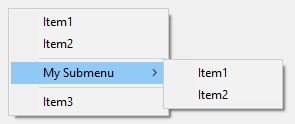
If a menu ever becomes completely empty -- such as by using MyMenu.Delete() -- it cannot be shown. If the tray menu becomes empty, right-clicking and double-clicking the tray icon will have no effect (in such cases it is usually better to use #NoTrayIcon).
If a menu item's callback is already running and the user selects the same menu item again, a new thread will be created to run that same callback, interrupting the previous thread. To instead buffer such events until later, use Critical as the callback's first line (however, this will also buffer/defer other threads such as the press of a hotkey).
Whenever a function is called via a menu item, it starts off fresh with the default values for settings such as SendMode. These defaults can be changed during script startup.
When building a menu whose contents are not always the same, one approach is to point all such menu items to the same function and have that function refer to its parameters to determine what action to take. Alternatively, a function object, closure or fat arrow function can be used to bind one or more values or variables to the menu item's callback function.
The standard items in A_TrayMenu and the main window's File, View and Help menu items deliver WM_COMMAND (0x0111) to A_ScriptHwnd before performing their action. The command ID is in the low word of wParam, and lParam is 0. An OnMessage callback can intercept the action by returning a non-empty numeric value, including 0. On Windows, sending or posting the same command to A_ScriptHwnd performs the corresponding action. On Linux and macOS the messages are synthesized from menu events. Menu interception is verified on Linux X11 under Xvfb; Wayland and macOS menu interception remain unverified.
| Action | Tray command ID | Main-window command ID |
|---|---|---|
| Open main window | 65300 | — |
| Help | 65301 | — |
| Window Spy | 65302 | 65402 |
| Reload Script | 65303 | 65400 |
| Edit Script | 65304 | 65401 |
| Suspend Hotkeys | 65305 | 65404 |
| Pause Script | 65306 | 65403 |
| Exit | 65307 | 65405 |
| Accessibility Spy (Linux and macOS) | 65308 | — |
| Variables and their contents | — | 65407 |
| Hotkeys and their methods | — | 65408 |
| Key history and script info | — | 65409 |
| Refresh | — | 65410 |
| User Manual | — | 65411 |
| Clear debug log | — | 65413 |
| About | — | 65414 |
On Windows, the tray Help command (65301) opens the Keysharp project repository; sending or posting command 65412 also opens it. On Linux and macOS, tray Help opens the issue tracker. The User Manual command (65411) displays an unimplemented-feature message. Commands 65308, 65413 and 65414 are Keysharp extensions; the Accessibility Spy item is present only on Linux and macOS. Command 65406 (AutoHotkey's ListLines view) has no corresponding action. Script-defined menu items and standard items added to other Menu objects use their registered callbacks.
Tray-icon notifications can be monitored with AHK_NOTIFYICON (0x0404). On Linux and macOS only toolkit activation events can be synthesized; the current Linux backend does not raise them. See the Windows, Linux and macOS notes under OnMessage.
GUI, Threads, Thread, Critical, #NoTrayIcon, Functions, Return, SetTimer
Adds a new menu item to the bottom of the tray icon menu.
A_TrayMenu.Add()  ; Creates a separator line.
A_TrayMenu.Add("Item1", MenuHandler)  ; Creates a new menu item.
Persistent

MenuHandler(ItemName, ItemPos, MyMenu) {
    MsgBox "You selected " ItemName " (position " ItemPos ")"
}
Creates a popup menu that is displayed when the user presses a hotkey.
; Create the popup menu by adding some items to it.
MyMenu := Menu()
MyMenu.Add("Item 1", MenuHandler)
MyMenu.Add("Item 2", MenuHandler)
MyMenu.Add()  ; Add a separator line.

; Create another menu destined to become a submenu of the above menu.
Submenu1 := Menu()
Submenu1.Add("Item A", MenuHandler)
Submenu1.Add("Item B", MenuHandler)

; Create a submenu in the first menu (a right-arrow indicator). When the user selects it, the second menu is displayed.
MyMenu.Add("My Submenu", Submenu1)

MyMenu.Add()  ; Add a separator line below the submenu.
MyMenu.Add("Item 3", MenuHandler)  ; Add another menu item beneath the submenu.

MenuHandler(Item, *) {
    MsgBox("You selected " Item)
}

#z::MyMenu.Show()  ; i.e. press the Win-Z hotkey to show the menu.
Demonstrates some of the various menu object members.
#SingleInstance
Persistent
Tray := A_TrayMenu ; For convenience.
Tray.Delete() ; Delete the standard items.
Tray.Add() ; separator
Tray.Add("TestToggleCheck", TestToggleCheck)
Tray.Add("TestToggleEnable", TestToggleEnable)
Tray.Add("TestDefault", TestDefault)
Tray.Add("TestAddStandard", TestAddStandard)
Tray.Add("TestDelete", TestDelete)
Tray.Add("TestDeleteAll", TestDeleteAll)
Tray.Add("TestRename", TestRename)
Tray.Add("Test", Test)

;;;;;;;;;;;;;;;;;;;;;;;;;;;;;;;;;;;;;;

TestToggleCheck(*)
{
    Tray.ToggleCheck("TestToggleCheck")
    Tray.Enable("TestToggleEnable") ; Also enables the next test since it can't undo the disabling of itself.
    Tray.Add("TestDelete", TestDelete) ; Similar to above.
}

TestToggleEnable(*)
{
    Tray.ToggleEnable("TestToggleEnable")
}

TestDefault(*)
{
    if Tray.Default = "TestDefault"
        Tray.Default := ""
    else
        Tray.Default := "TestDefault"
}

TestAddStandard(*)
{
    Tray.AddStandard()
}

TestDelete(*)
{
    Tray.Delete("TestDelete")
}

TestDeleteAll(*)
{
    Tray.Delete()
}

TestRename(*)
{
    static OldName := "", NewName := ""
    if NewName != "renamed"
    {
        OldName := "TestRename"
        NewName := "renamed"
    }
    else
    {
        OldName := "renamed"
        NewName := "TestRename"
    }
    Tray.Rename(OldName, NewName)
}

Test(Item, *)
{
    MsgBox("You selected " Item)
}
Demonstrates how to add icons to menu items.
FileMenu := Menu()
FileMenu.Add("Script Icon", MenuHandler)
FileMenu.Add("Suspend Icon", MenuHandler)
FileMenu.Add("Pause Icon", MenuHandler)
FileMenu.SetIcon("Script Icon", A_AhkPath, 2) ; 2nd icon group from the file
FileMenu.SetIcon("Suspend Icon", A_AhkPath, -206) ; icon with resource ID 206
FileMenu.SetIcon("Pause Icon", A_AhkPath, -207) ; icon with resource ID 207
MyMenuBar := MenuBar()
MyMenuBar.Add("&File", FileMenu)
MyGui := Gui()
MyGui.MenuBar := MyMenuBar
MyGui.Add("Button",, "Exit This Example").OnEvent("Click", (*) => WinClose())
MyGui.Show()

MenuHandler(*) {
    ; For this example, the menu items don't do anything.
}
Reports the number of items in a menu, and that the items of a submenu are not counted.
MyMenu := Menu()
MyMenu.Add("Item 1", NoAction)
MyMenu.Add("Item 2", NoAction)
MyMenu.Add()  ; A separator is an item too.

Submenu := Menu()
Submenu.Add("Item A", NoAction)
Submenu.Add("Item B", NoAction)
MyMenu.Add("My Submenu", Submenu)

MsgBox("MyMenu has " MyMenu.MenuItemCount " items, and its submenu has " Submenu.MenuItemCount ".")  ; 4 and 2.

NoAction(*) {
    ; Do nothing.
}